
Mobile guide: buttons and windows
This page shows the game's phone screens as 2000×900 screenshots. Tap a number on the image to jump to that button's description; every button works with a single tap.
Tips
- Everything works with one tap; you never need to hold a button.
- Look up where an item comes from in Menu › Settings › Wiki.
- Buy potions with the Remote shop without going back to town.
- In multi-account mode up to 3 characters can gain items; turn item gain off on the others.
- To save battery, lower the quality in Settings › Graphics.
Game screen (in town)
The main game screen on a phone. Every button works with a single tap; nothing needs to be held down.
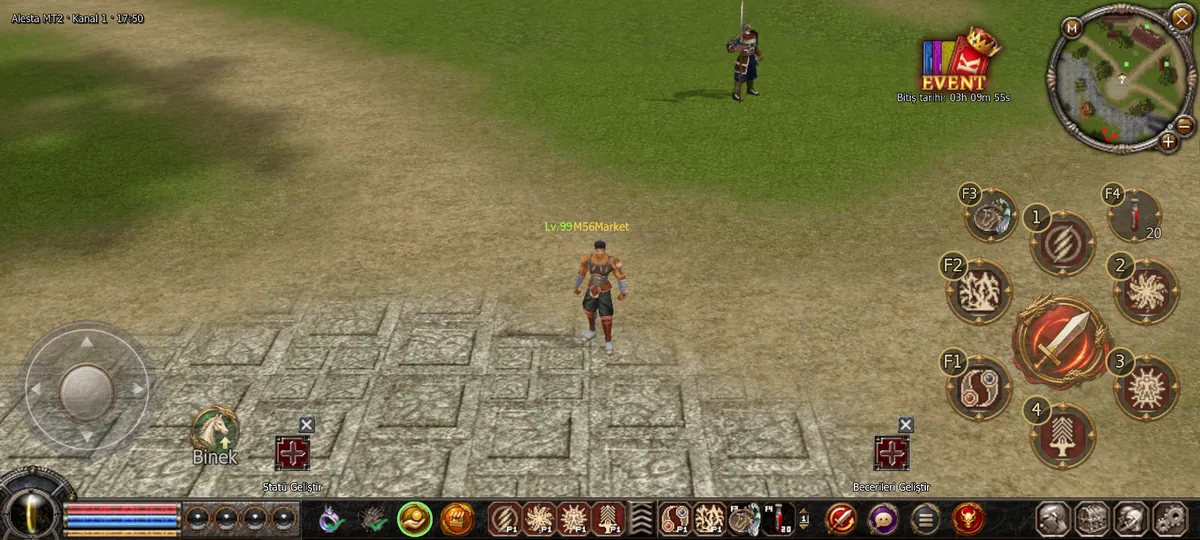
- 1Joystick Slide your thumb to walk. You can also tap the ground to walk there.
- 2Attack Tap to attack the nearest monster; the target is picked automatically.
- 3Skills (1-4) The slots around the attack button are your skills. Tap to cast.
- 4Quick slots (F1-F4) Put potions, mount whistles and similar items here and use them with one tap.
- 5Mount Mount or dismount.
- 6Raise stats Appears when you have stat points to spend; tap to open the character window.
- 7Raise skills Appears when you have skill points; tap to open the skill window.
- 8Minimap Shows your surroundings. The M button opens the full map; + / - zooms.
- 9HP / SP Red bar is HP, blue bar is SP.
- 10EXP lock Tap to turn EXP gain off or on (when you do not want to level up).
- 11Item gain (multi-account) Turns item drops for this character on or off. Up to 3 characters can gain items at the same time.
- 12Auto pick-up When on, your own dropped items and Yang are picked up automatically.
- 13Remote shop Opens town NPC shops (General store, Weapons, Armour…) from anywhere.
- 14Auto hunt Opens the auto hunt panel: pick skills/potions and tap Start.
- 15Chat Opens the chat input.
- 16Menu The main menu with every window (3 tabs).
- 17Boss / dungeon info Shows dungeon level requirement, cooldown and entry ticket.
- 18Character Character window (stats, skills, quests).
- 19Inventory Equipment and bag.
- 20Friends Friend list and guild.
- 21System Settings, support, change channel/character and exit.
Menu › Main
Opens from the Menu button. The first tab holds the windows you use every day.

- 1Tabs Switch between Main / Features / Settings.
- 2Switchbot Re-rolls bonuses until the one you want appears.
- 3Auto hunt Opens auto hunt.
- 4Accounts Multi-account: up to 3 accounts online at once.
- 5Remote shop Opens NPC shops remotely.
- 6Shop search Searches player shops for an item.
- 7Map Full map.
- 8Item shop Buy with EP.
Menu › Features
Second tab: extra systems.
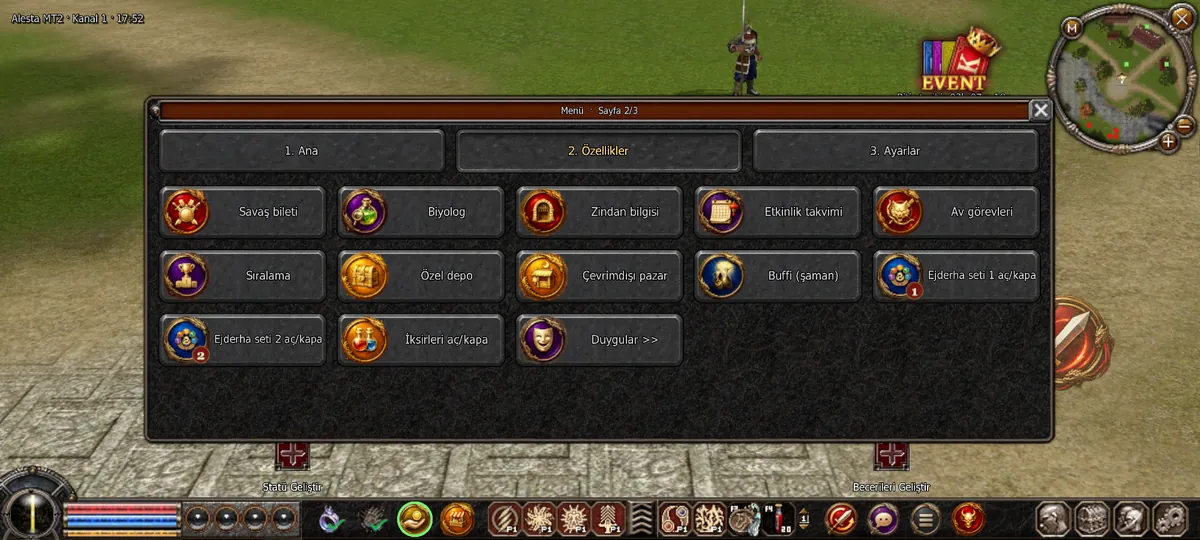
- 1Biologist Biologist quest: hand in items for permanent bonuses.
- 2Dungeons Dungeon list, levels and cooldowns.
- 3Event calendar Weekly event times.
- 4Ranking Player ranking.
- 5Storage Separate storage for upgrade materials, books and stones.
- 6Offline shop A shop that keeps selling while you are offline.
- 7Buffi (shaman) A helper shaman that buffs you.
- 8Dragon soul set Turns the dragon soul set bonus on or off with one tap.
Menu › Settings
Third tab: settings, help and logs.

- 1Settings Sound, graphics, game and control settings.
- 2System / Exit Change channel, account or character, and exit.
- 3Mobile help Short guide to the phone controls.
- 4Support Open a support ticket.
- 5Wiki In-game encyclopedia: items, monsters, chests, upgrades.
- 6Chat log Older chat lines.
- 7Camera angle Changes the camera view.
- 8Show/hide names Shows or hides names on screen.
- 9Screenshot Takes a screenshot.
Inventory
Your equipment on the left, your bag on the right (pages I-V). Tap an item: actions such as use/equip/sell appear in the box below.
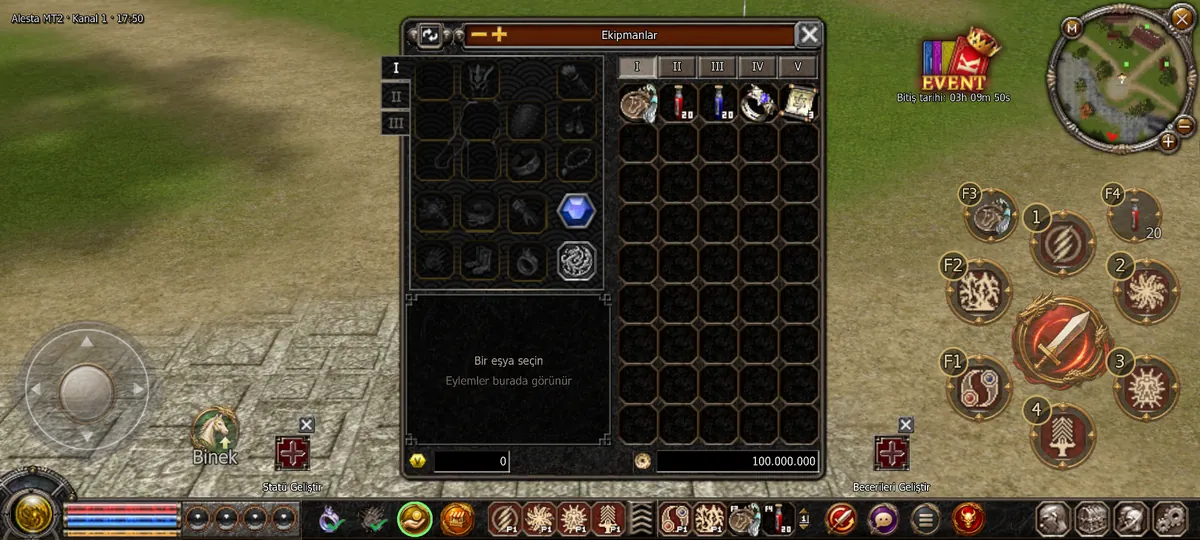
- 1Equipment Weapon, armour, helmet, shield, shoes, jewellery.
- 2Bag pages Tap to switch between pages I-V.
- 3Action box Buttons for the selected item appear here.
- 4Yang Your money.
- 5Sort Sorts the bag.
Character
Spend stat points with the + buttons. The tabs at the bottom open skills, emotes and quests.
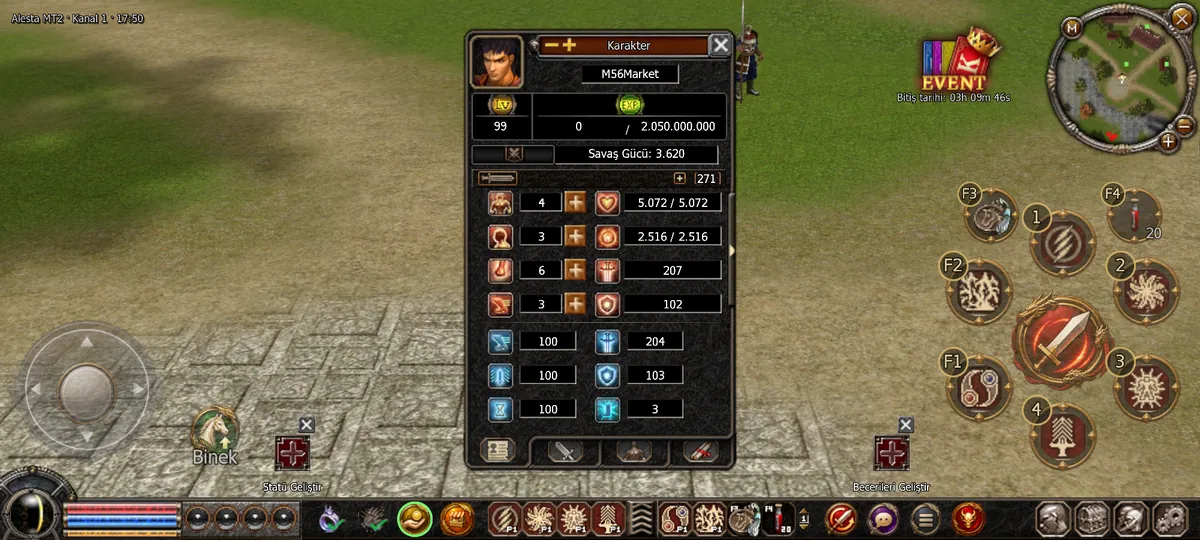
- 1Stat + Adds a point to STR / INT / DEX / VIT.
- 2Combat power Overall strength of your character.
- 3Skills tab Switches to skills.
- 4Quests tab Switches to quests.
Skills
Spend skill points and put skills into quick slots.

Auto hunt
Choose which skills and potions to use, set options On/Off and tap Start. Auto hunt needs an Auto Hunt Ticket (sold in the Item shop).
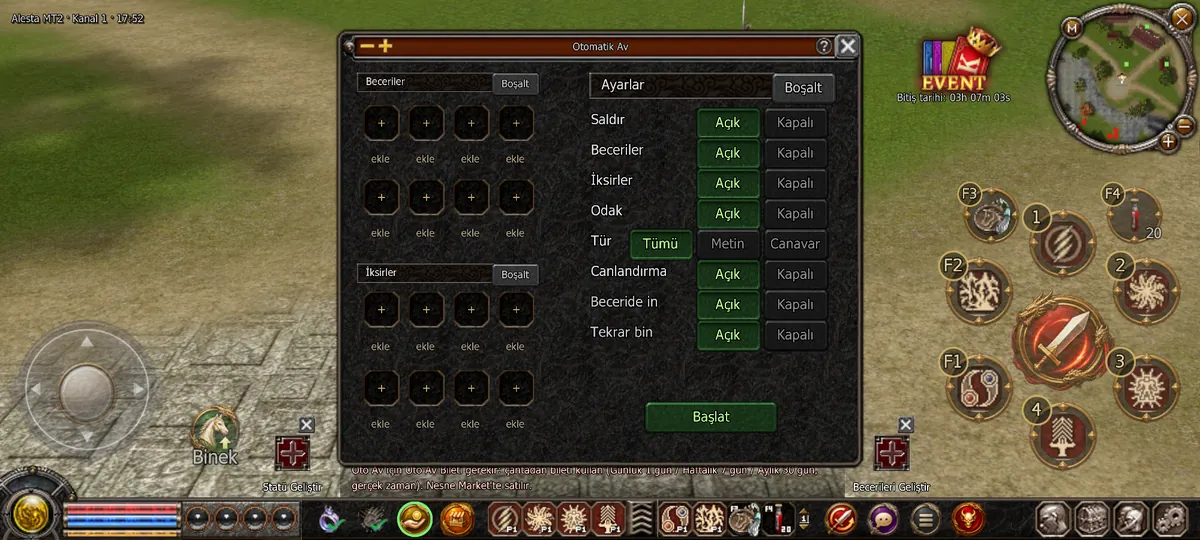
- 1Skill slots Tap a + slot to add a skill.
- 2Potion slots Add potions to be used.
- 3Target type All / Metin stones only / Monsters only.
- 4Revive Restarts automatically after death.
- 5Start Starts auto hunt.
Multi-account
Up to 3 accounts stay online on the same phone. Tap a card to switch to that account; the others keep hunting in the background.

- 1Account card Tap the card to switch to that account.
- 2Hunt: Start Starts auto hunt for this account.
- 3Log out Logs out only this account.
- 4Add account Add a second or third account.
- 5Closing in background? Battery settings guide for your phone.
Item shop
Costumes, pets, upgrade materials and premium items for EP. You can type an item name into the search box.

- 1Your EP Your EP balance.
- 2Categories Offers, Special, Cosmetics, Pets, Upgrade items.
- 3Buy EP EP packages.
- 4Search Search by item name.
- 5Buy Tap the price and confirm.
Special storage
Upgrade materials, skill books and stones are kept here without using bag space.

- 1Storage types Switch between materials, books, stones…
Offline shop
Type a shop name, place items in the grid with prices and tap Create. The shop stays open after you log out.

- 1Shop name Your shop's display name.
- 2Create Opens the shop.
Shop search
Search player shops for an item and compare prices.

Map
Full map of the current area. Green dots are NPCs.

Quests
Quests are grouped by type; tap a row.

Biologist
Hand in the item the Biologist asks for; each finished step gives a permanent bonus.

In-game wiki
Search an item: +0…+9 upgrade materials and Yang, the evolution and the 'Obtained from' list (chests / monsters).
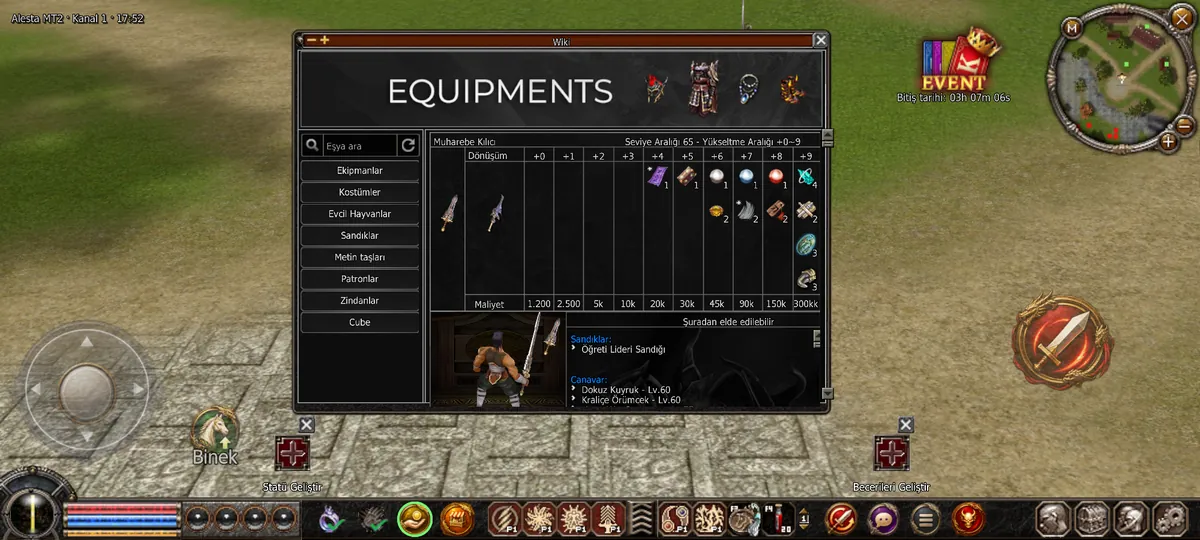
- 1Search Type an item name.
- 2Categories Equipment, costumes, pets, chests, Metin stones, bosses, dungeons, alchemy.
- 3Upgrade table Materials and Yang for each step.
- 4Obtained from Chests and monsters.
Settings
Game, Graphics, Sound and Controls tabs. Lower sound and music here.

- 1Tabs Game / Graphics / Sound / Controls.
Chat
Tapping the chat button opens the input box.

Remote shop
Town NPC shops in one window. Tap a card to open that shop; scroll for more.

- 1General store Potions and basic items (for Yang).
- 2Upgrade materials Upgrade materials (for Yang).
System
Support, account and privacy, Item shop, settings, change channel / account / character and exit.

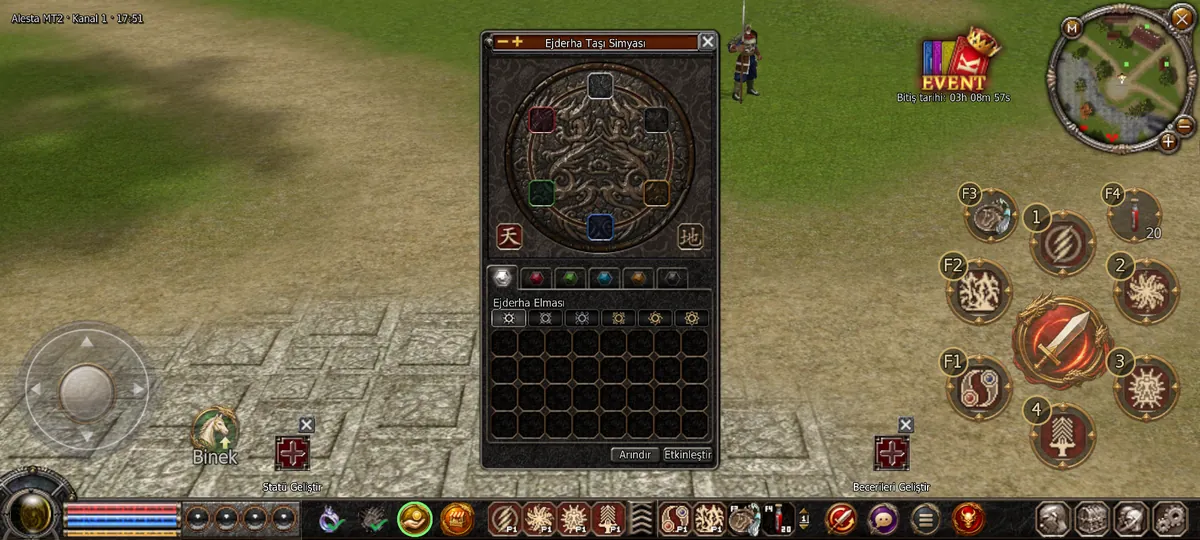
Dragon soul
Equip dragon soul stones and activate the set bonus.
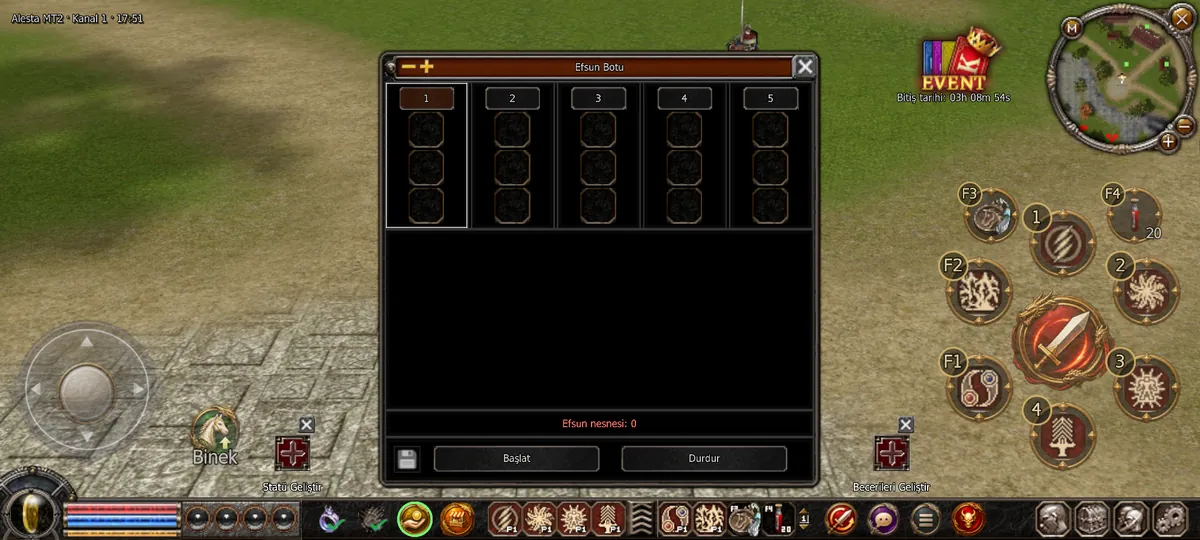
Switchbot
Put an item in and choose the bonus you want; the bot uses bonus items until that bonus appears.
Dungeon info
Dungeons, required level, type (solo/party), cooldown and entry ticket.
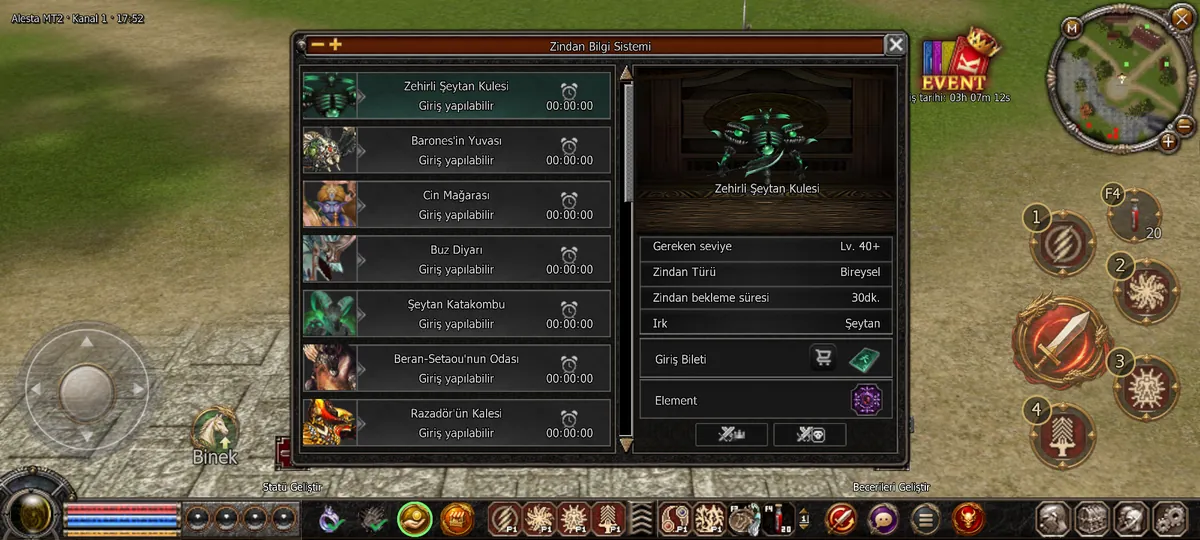
- 1Dungeon list Tap a row.
- 2Details Level, type, cooldown.